

Real-time Streams
Push live updates from your backend to connected clients without polling. Perfect for AI responses, chat apps, and long-running tasks.
Why Streams?
Building modern apps means dealing with long-running tasks - AI responses that stream in word by word, file processing that takes time, or chat messages that need to appear instantly.
Without Streams, you'd need to:
- Build polling logic on the frontend
- Set up WebSocket infrastructure manually
- Manage connection states and reconnection
- Handle data synchronization yourself
With Motia Streams, you get all of this out of the box. Just define what data you want to stream, and Motia handles the rest.
Some Use Cases for Streams
- AI/LLM responses - Stream ChatGPT responses as they generate
- Chat applications - Real-time messaging and typing indicators
- Long processes - Video processing, data exports, batch operations
- Live dashboards - Real-time metrics and notifications
- Collaborative tools - Real-time updates across multiple users
Creating a Stream
Streams are just files. Create a .stream.ts file in your src/ folder and export a config.
That's it. Motia auto-discovers the stream, and you can import the stream instance directly in any step file.
Subscription Hooks
Stream configs support onJoin and onLeave hooks for controlling client subscriptions:
onJoin— Called when a client subscribes. Return{ unauthorized: true }to reject the subscription.onLeave— Called when a client unsubscribes.
Using Streams in Steps
Once you've defined a stream, import and use it directly in any step file.
Stream Methods
Every stream has these methods:
| Method | What it does |
|---|---|
set(groupId, id, data) | Create or update an item. Returns StreamSetResult with new_value and old_value |
get(groupId, id) | Get a single item |
delete(groupId, id) | Remove an item |
getGroup(groupId) | Get all items in a group |
update(groupId, id, ops) | Atomic update with UpdateOp[]. Returns { new_value, old_value } |
send(channel, event) | Send ephemeral events (typing, reactions, etc.) |
Think of it like this:
groupId= Which room/conversation/userid= Which specific item in that roomdata= The actual data matching your schema
Atomic Updates with update()
Use the update() method to perform atomic operations on stream items without reading and rewriting the entire object:
This uses the same UpdateOp types as state updates: set, merge, increment, decrement, remove.
Learn more about Atomic Updates
Real Example: Todo App with Real-Time Sync
Let's build a todo app where all connected clients see updates instantly.
This is a real, working example from the Motia Examples Repository. You can clone it and run it locally!
Step 1: Create the stream definition
Step 2: Create an API endpoint that uses streams
What happens here:
- Client calls
POST /todowith a description - Server creates the todo and calls
todoStream.set('inbox', todoId, newTodo) - Instantly, all clients subscribed to the
inboxgroup receive the new todo - No polling, no refresh needed
Every time you call todoStream.set(), connected clients receive the update instantly. No polling needed.
Restricting Stream Access
Streams can enforce authentication and authorization rules so that only approved clients can subscribe.
1. Configure streamAuth
2. Apply fine-grained rules with canAccess
Each stream can expose an optional canAccess function that receives the subscription info plus the StreamAuthContext value returned by your authenticate function.
canAccess can be synchronous or async. If it's not defined, Motia allows every client (even anonymous ones) to subscribe.
3. Send tokens from the client
Provide an auth token when creating the stream client by embedding it in the WebSocket URL.
Using the browser/node clients directly:
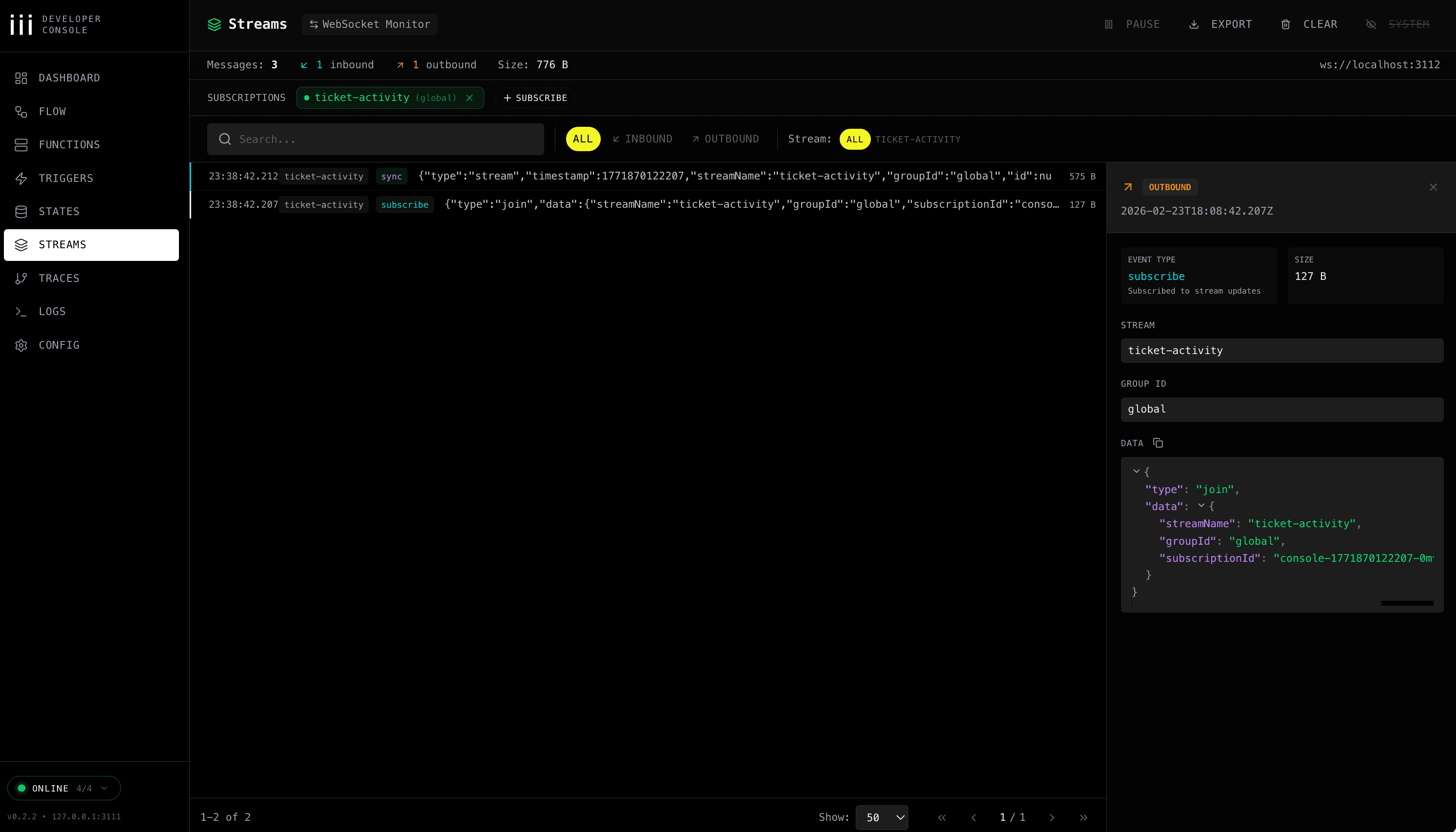
Viewing Streams in the iii Development Console
The iii development console can display stream updates in real-time:
- Make sure your API Step returns the stream object:
- Open the iii development console
- Watch the stream update in real-time
The console automatically detects stream responses and subscribes to them for you.
Using Streams in Your Frontend
Once you have streams working on the backend, connect them to your React app.
Install
Setup Provider
Wrap your app with the provider:
Subscribe to Stream Updates
How it works:
useStreamGroup()subscribes to all items in theinboxgroup- When server calls
todoStream.set('inbox', todoId, newTodo), thetodosarray updates automatically - React re-renders with the new data
- Works across all connected clients!
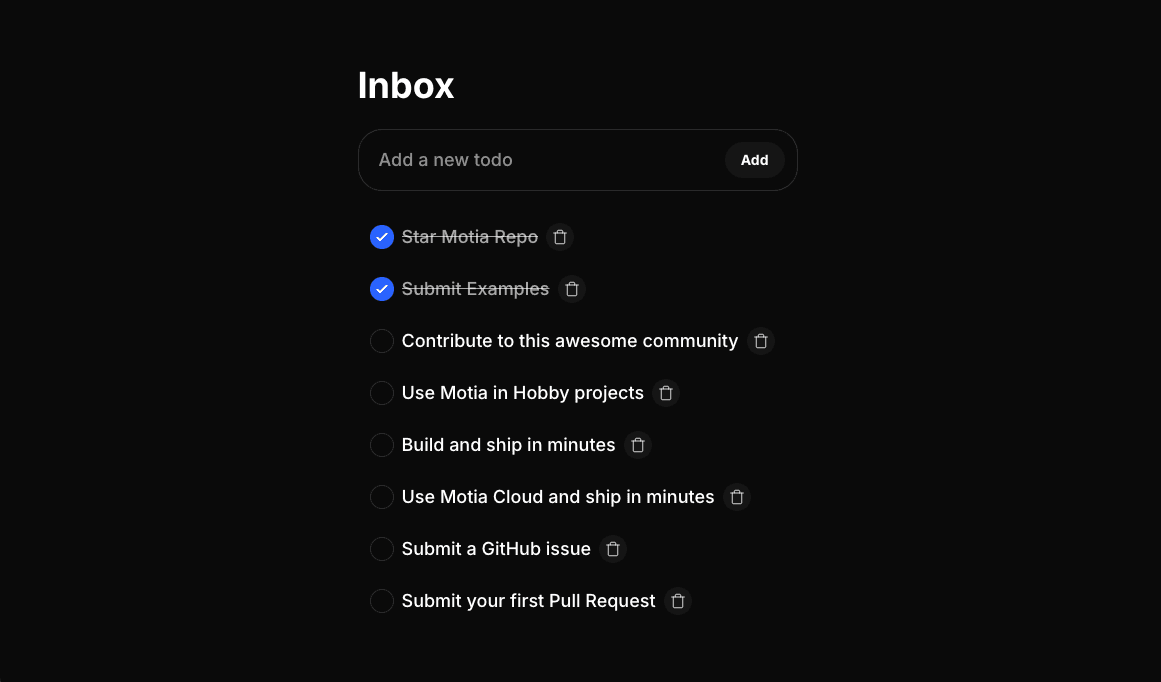
Every time you call createTodo(), connected clients receive the update instantly. No polling needed.
For a dedicated API reference covering MotiaStreamProvider, useMotiaStream, useStreamGroup, and useStreamItem, see React Stream Client.
Ephemeral Events
Sometimes you need to send temporary events that don't need to be stored - like typing indicators, reactions, or online status.
Use the stream's send() method for this:
Difference from set():
set()- Stores data, clients sync to it. Returns{ new_value, old_value }send()- Fire-and-forget events, not stored
Remember
- Streams = Real-time state that clients subscribe to
- Every
set()call pushes updates to connected clients instantly and returns{ new_value, old_value } - Use
update()for atomic operations (increment, decrement, set fields) - Use
send()for temporary events like typing indicators - View in the iii development console before building your frontend
- No polling needed - WebSocket connection handles everything
Stream Triggers
Steps can react to stream changes (create, update, delete) using stream triggers:
Learn more about Stream Triggers